How to transcribe a voice memo to text, free
Free ways to turn a voice memo into text on iPhone, Android and Mac, what each one does badly, and when you want transcription that happens by itself.
The quick answer
You can transcribe a voice memo to text for free on any phone. The built-in tools on iPhone, Android and Mac all do it, and none of them needs an account. They differ in how much you have to do by hand and in whether your audio leaves the device.
Pick by how often you will do it. For one memo, use whatever your phone already has. For a habit — meetings, appointments, ideas you want to find again — use a recorder that transcribes by itself.
On iPhone
Voice Memos can show a transcript on recent versions of iOS: open a recording, tap the three dots and choose View Transcript. You can copy the text out from there. If you do not see the option, update iOS and check the language is supported.
For a quick thought, skip the recording and dictate: tap the microphone on the keyboard and speak into Notes or any text field. Words appear as you talk, but no audio is kept, so you cannot check them later.
We cover the iPhone options, including the limits of each, in more detail in our iPhone guide.
On Android
Google's Recorder app transcribes as you record on supported phones, and the transcript is searchable inside the app. On phones without it, voice typing in a notes app turns speech into text in the same way dictation does on iPhone.
If you already have a recording from another app, you will usually need a separate transcription tool, because most recorders only store the audio.
On Mac
Voice Memos on Mac syncs with your iPhone through iCloud, so a memo recorded on the phone can be opened on the Mac and its transcript copied there. Dictation (Edit, then Start Dictation) works in any text field for live speech.
Free web tools: read the small print
Plenty of websites will transcribe an audio file for free. Check three things before you upload anything private: whether there is a length or file-size limit, whether the audio is stored after the text comes back, and whether the free tier is a trial that ends.
For a podcast clip that is a fair trade. For a medical appointment or a difficult conversation at work, it is worth knowing where the recording goes.
Getting accurate text
- Record close to the speaker; distance costs more accuracy than accent does
- Reduce background noise before you start, not after
- Set the recognition language to match what is spoken
- Read the transcript once and fix names and numbers, which are the usual mistakes
When a transcript is not enough
Nobody rereads forty minutes of their own speech. What you want is the two sentences that mattered and the thing you promised to do.
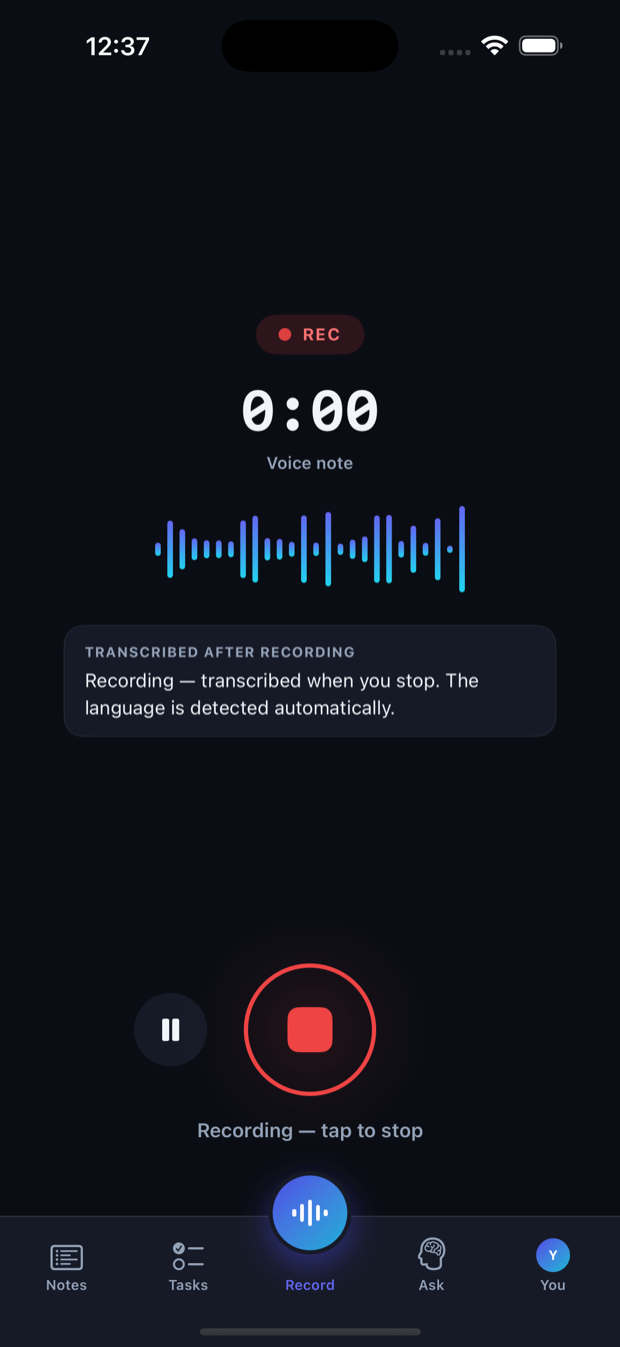
Saymory records on your phone, transcribes ordinary voice notes on the device the moment you stop, and writes a summary with action items and their dates. You can then ask your notes a question and see the moment the answer came from. Recording is free; summaries and unlimited questions are part of Pro.
If most of your voice memos come from meetings, see how Saymory handles them.
Questions people ask
- Is it really free? The built-in phone tools are. Free web tools usually limit length or file size.
- Is my audio uploaded? On-device tools keep it on your phone; most web tools upload it. Check before you use one for anything private.
- Can I transcribe a recording that is already on my phone? Often yes, but it depends on the app that holds it. Voice Memos on iPhone and Recorder on supported Android phones transcribe their own recordings.
- Which is the most accurate? Accuracy depends more on audio quality than on the tool, so clean audio matters most.