How to record and transcribe a voice recording on iPhone
Three ways to turn a voice recording into text on iPhone — the built-in options, their limits, and how to get a transcript without uploading your audio anywhere.
The short answer
If you only need the words once, Voice Memos plus the Notes app will do: record, then use Live Text or dictation to get something you can paste. If you need it repeatedly — meetings, appointments, ideas you will want to search in six months — you want a voice recorder with transcription built in, so the transcript is produced automatically the moment you stop.
The distinction matters more than it sounds. A recording you have to transcribe by hand is a chore you will do twice and then stop doing. A recording that transcribes itself becomes something else entirely: a searchable record of everything you said.
Option 1: Voice Memos, then transcribe manually
Apple ships Voice Memos on every iPhone and it is a perfectly good recorder. What it is not is a transcription tool. On recent iOS versions you can view a transcript of a memo, but it lives inside that app, is awkward to search across recordings, and gives you nothing beyond raw text — no summary, no structure, no way to ask it a question later.
Use it when you want a single recording and nothing more.
Option 2: Dictation straight into notes
Tap the microphone on the iOS keyboard and speak into any text field. Words appear as you talk, so there is no transcription step at all.
The catch is that dictation is designed for one person speaking clearly to their phone. It handles a quick thought well. It does not handle a two-hour meeting, a conversation across a table, or a doctor talking while you hold the phone in your lap — and you cannot go back and check what was actually said, because no audio was kept.
Option 3: A recorder that transcribes as part of the job
This is the category worth understanding, because the apps in it differ on one question: where does the audio go?
Many transcription apps upload every recording to a server, because that is the cheapest way to run speech recognition. That is a reasonable trade for a podcast. It is a different trade for a medical appointment or a difficult conversation at work.
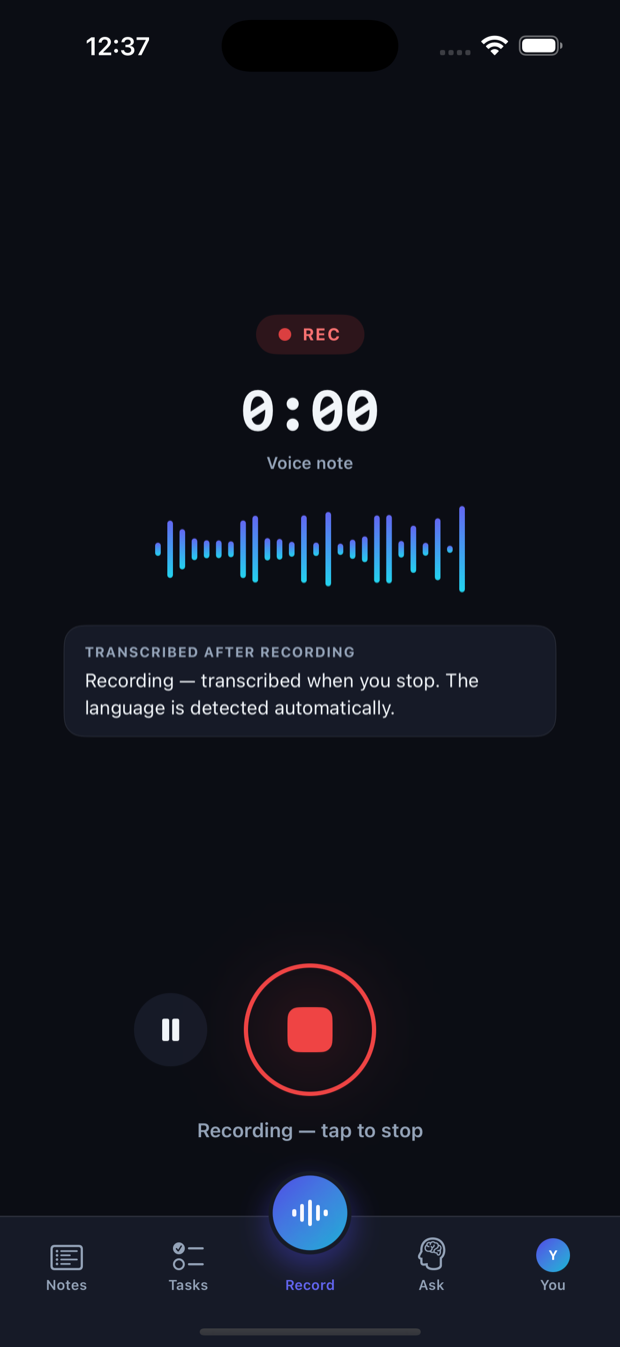
Saymory starts on the device: speech becomes text using the iPhone's own recognition the moment you stop, so a note is readable before anything is sent anywhere. With welcome credits or Pro, the recording is then sent to a transcription provider for a more accurate transcript and, in Conversation mode, speaker labels — and deleted there the moment the text comes back. It is never stored on Saymory's servers, and your notes only reach your account if you turn cloud backup on.
What to look for, whichever app you pick
- Background recording that survives a locked screen and a phone call — a recorder that quietly dies twenty minutes in is worse than no recorder
- A transcript you can search across every recording, not one buried per file
- Clarity about whether audio is uploaded, and the ability to turn that off
- Speaker labels if you record conversations; a wall of undifferentiated text is hard to use later
- An export path, so your recordings are not trapped if you stop paying
The step most people skip
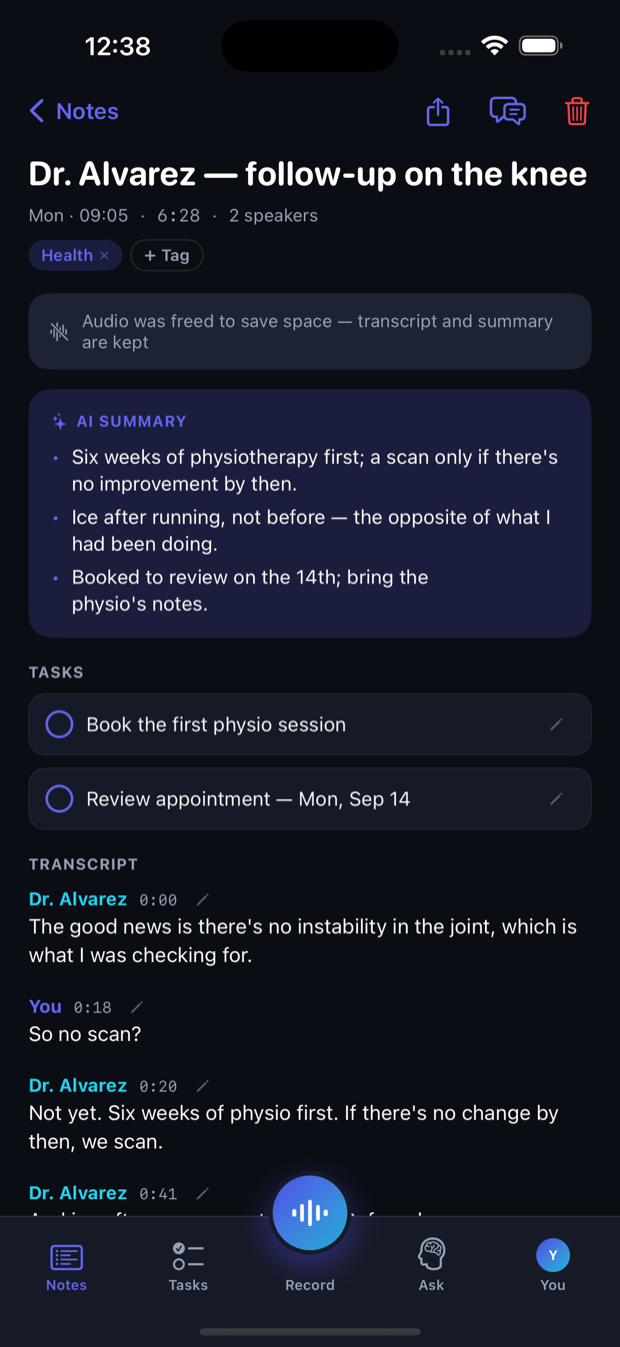
A transcript is not the goal. Nobody re-reads forty minutes of their own speech. What you actually want is the two sentences that mattered, and the thing you promised to do.
That is the argument for a tool that writes a summary and pulls out commitments with their dates — and, better still, one you can ask afterwards. "What budget did we agree on?" is a faster path to the answer than scrolling a transcript, and it is the difference between an archive and a memory.