How to record a meeting on iPhone
How to record an in-person meeting or a video call on iPhone, where to put the phone, what to say first, and how to get notes and action items afterwards.
The short answer
For an in-person meeting, put your iPhone on the table and use a recorder app that keeps going with the screen locked. For a video call, use the recording feature in the call app if the host allows it, or record the room with a second device. Whichever you use, tell the other people you are recording.
The recording is only the start. What you need afterwards is the decisions and who owes what, so pick a method that gets you to notes without a lot of manual work.
Tell people first
Say at the start that you are recording and why, and wait for a yes. Many places require consent from everyone in the room, and the rules differ between countries, states and workplaces. Some employers also have their own rules about recording meetings.
Asking also tends to make the meeting better. People relax once they know the notes will be accurate. This is general information, not legal advice.
In-person meetings
- Put the phone in the middle of the table with the microphone facing the group, not in your pocket or bag.
- Pick a recorder that continues with the screen locked, so you are not stuck watching the phone.
- Record in a quiet room if you can. Noise and distance cost more accuracy than accents do.
- Charge the phone first, or plug it in. A two-hour meeting uses a lot of battery.
- Use a mode that labels speakers if more than two people will talk, or the notes become a wall of text.
Video calls on your iPhone
Zoom, Teams and Google Meet each have their own recording, but the host usually controls it. If you are the host, or the host allows it, that is the cleanest option because the audio comes straight from the call.
If you cannot use the app's recording, the other route is to record the room. A phone's microphone only picks up what is played out loud, so you will need the call on the speaker and a second device recording nearby. Headphones will silence the other side of the call.
Voice Memos or a dedicated app?
Voice Memos is free, already on your phone and fine for one short meeting. Recent versions of iOS can show a transcript, but you get raw text only, with no summary or action items and no easy way to search across meetings.
A dedicated meeting recorder is worth it once you do this every week. The things to check are whether recording survives a locked screen and a phone call, whether it labels speakers, and whether you can export your notes if you stop using it.
Getting notes you will actually use
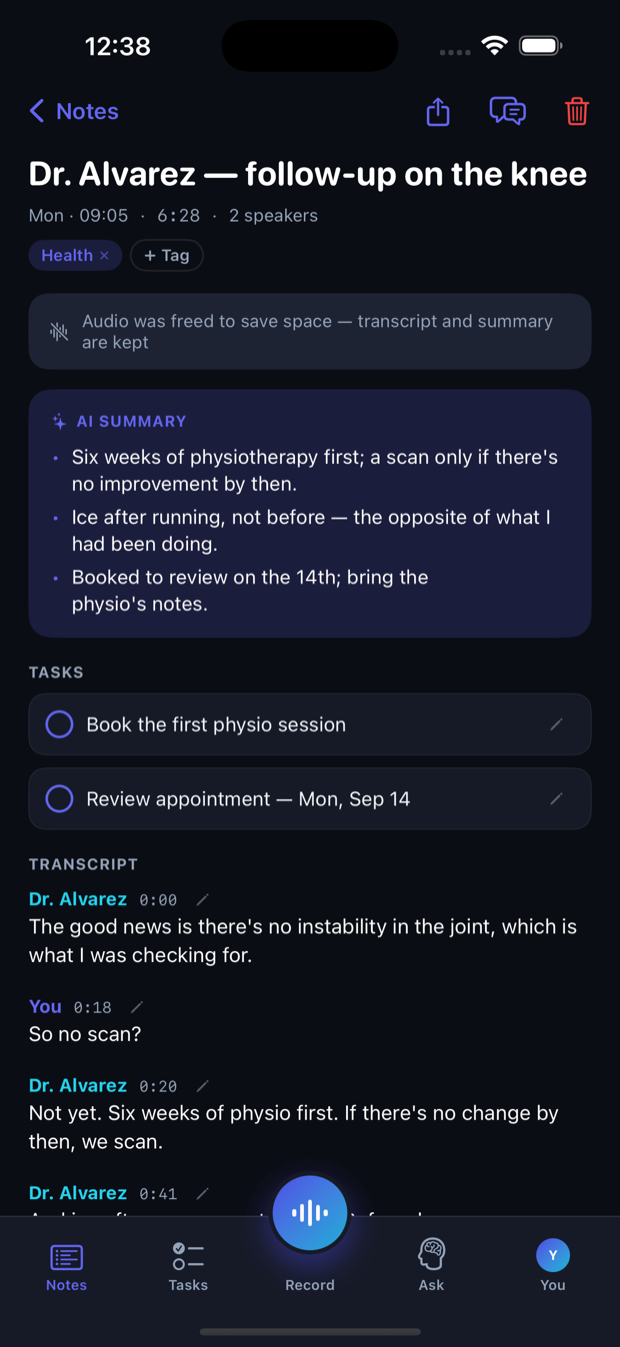
Saymory records on your iPhone, iPad or Android phone and keeps going if you lock the screen or switch to another app. If a phone call interrupts it, the recording pauses rather than ending. Conversation mode labels each speaker, and Pro writes a summary with action items and their dates. You can then ask your notes a question, such as what budget was agreed, and see the moment the answer came from.
Recording and transcription are free. Summaries, unlimited questions and 25 hours a month of Conversation mode are part of Pro. Conversation mode sends the audio to a cloud transcription provider so it can tell voices apart, and the audio is deleted there when the text comes back.
- AI meeting notes without typing
- How to take meeting minutes without typing
- Best AI note takers in 2026, compared honestly
Questions people ask
- Can I record a meeting in secret? Do not. Consent rules apply and trust is hard to rebuild.
- How long can I record? That depends on the app and your storage. Saymory handles long recordings and keeps the audio if the app is closed mid-meeting.
- Will it work with the screen locked? It should with a proper recorder app. Voice Memos does too.
- What about phone calls? See our guide to recording a phone call on iPhone.